
ADMINISTRATOR
- Učlanjen(a)
- 11.10.2009
- Poruka
- 67.905
Uninstall via Start menu
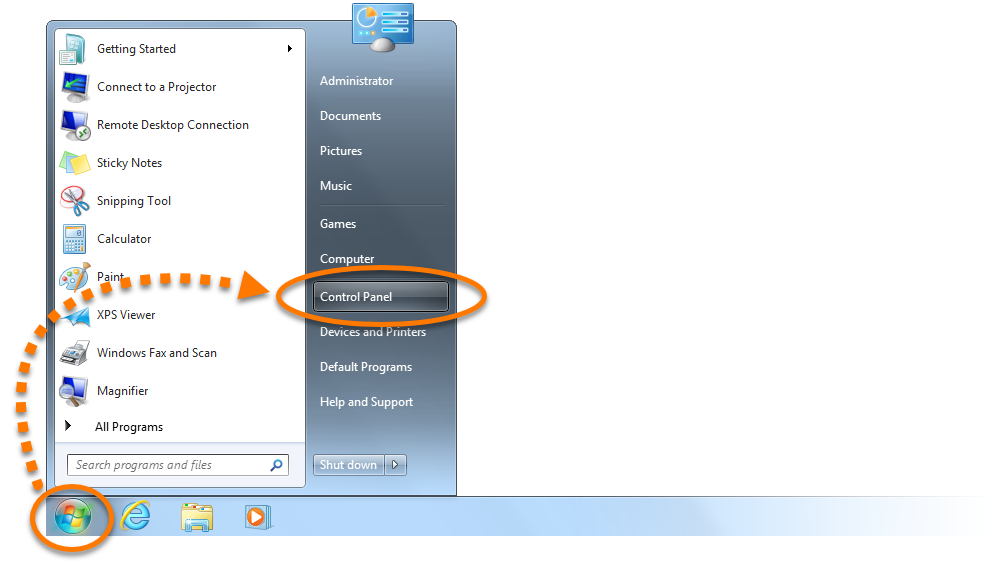
- Click the Windows
Start icon, then select Control Panel.

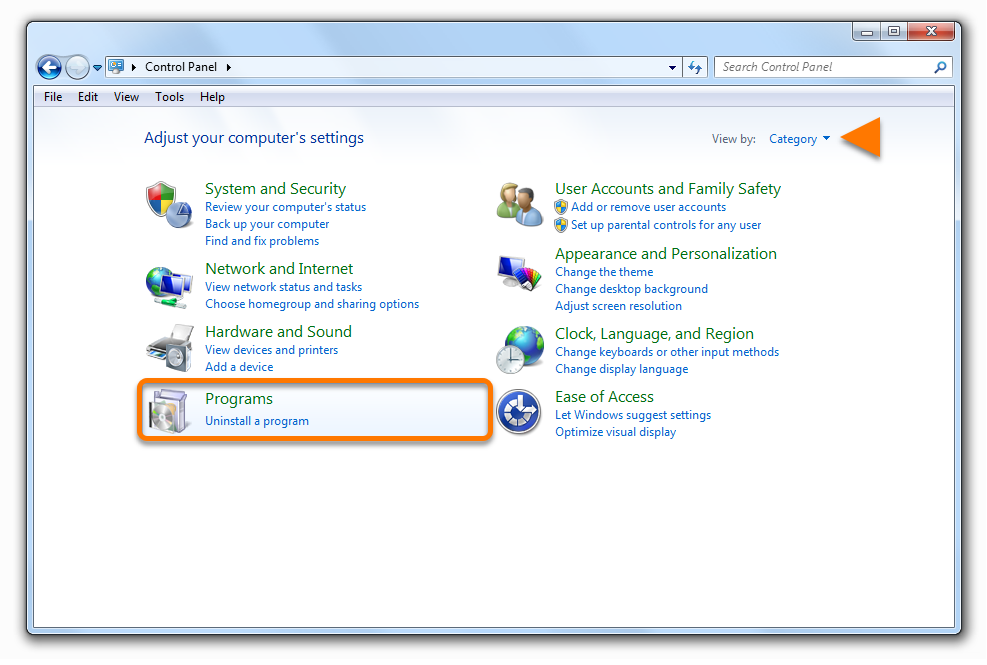
- Follow option A or option B below according to your view:
- Option A (Default category view): Under Programs, click Uninstall a program.
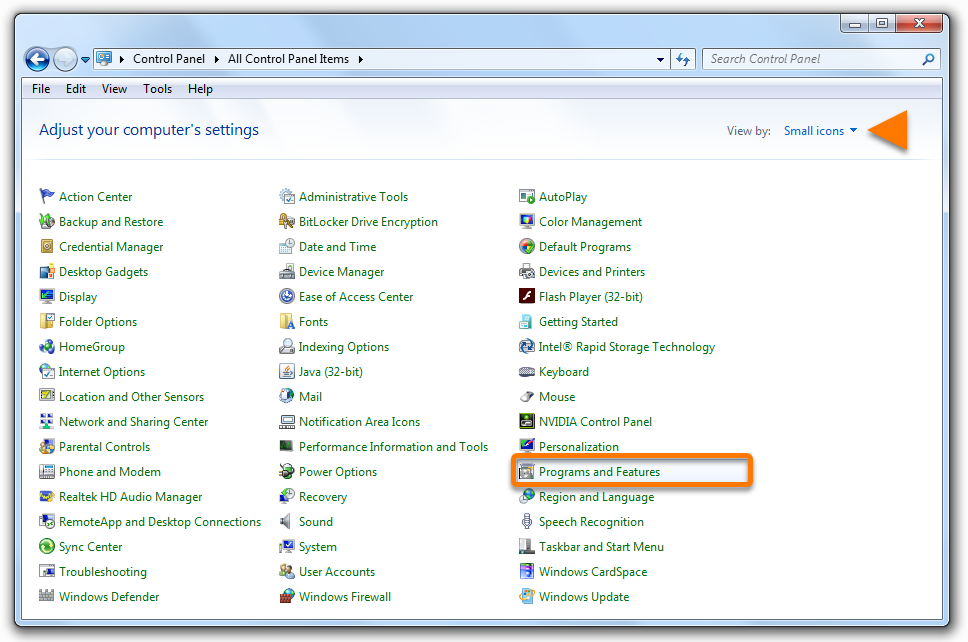
- Option B (Large/small icons view): Click Programs and Features.
- Option A (Default category view): Under Programs, click Uninstall a program.
- Right-click Avast Free Antivirus, then select Uninstallfrom the drop-down menu.
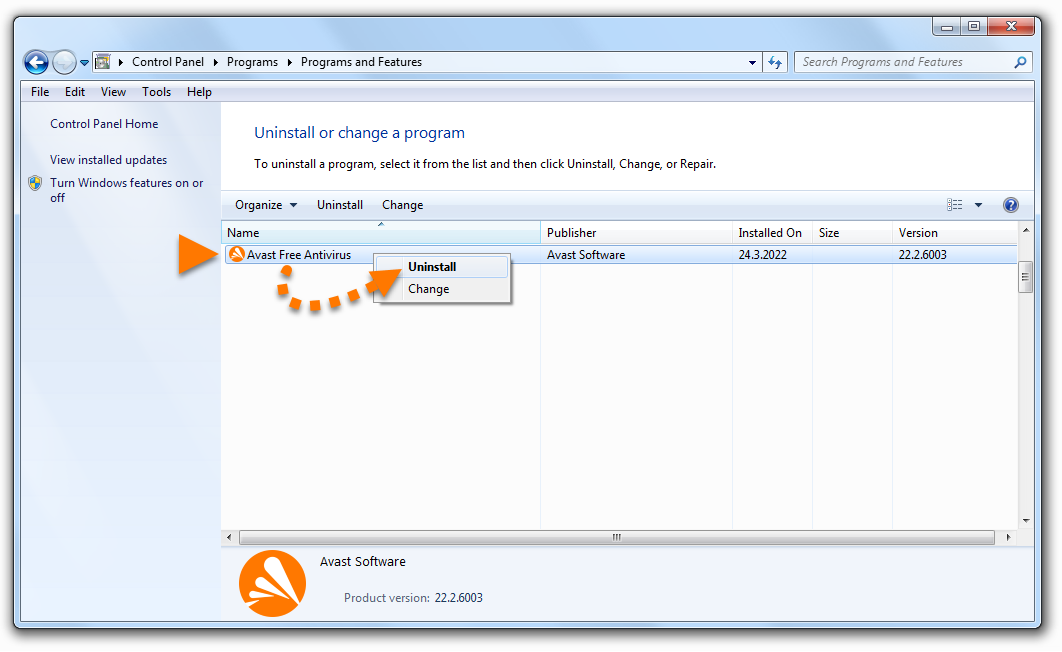
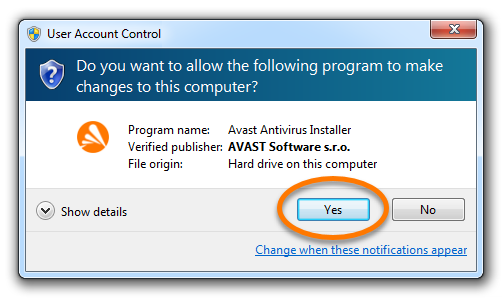
- If prompted for permission by the User Account Control dialog, click Yes.
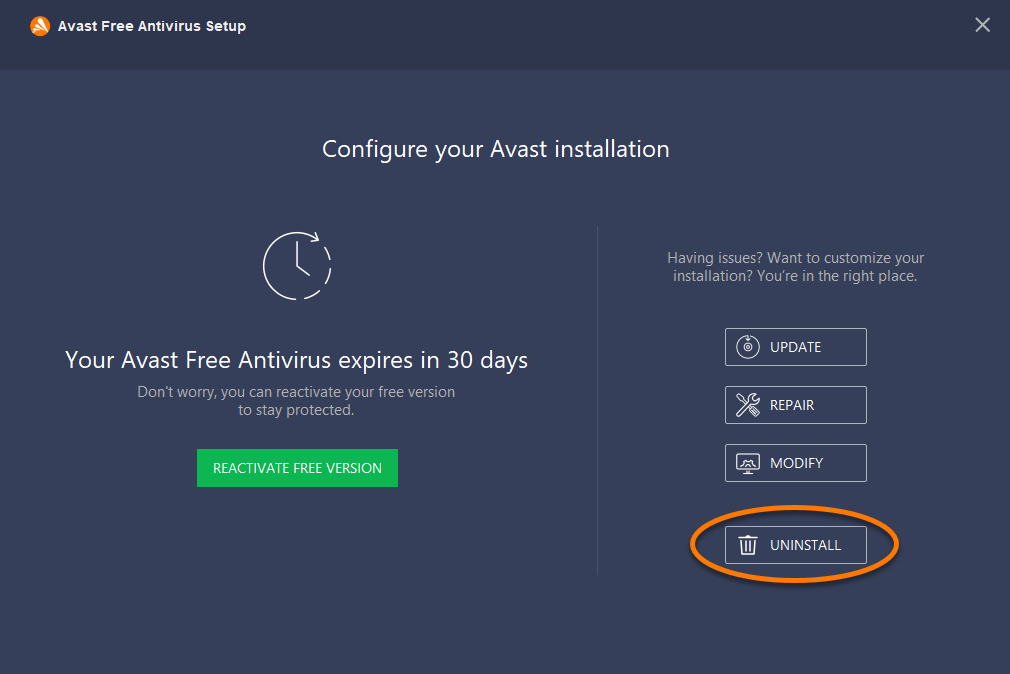
- When the Avast Free Antivirus Setup window appears, click Uninstall.
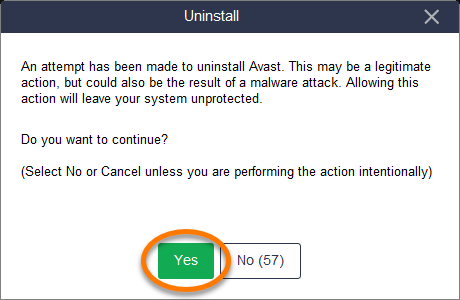
- Click Yesto confirm that you want to uninstall Avast Free Antivirus.
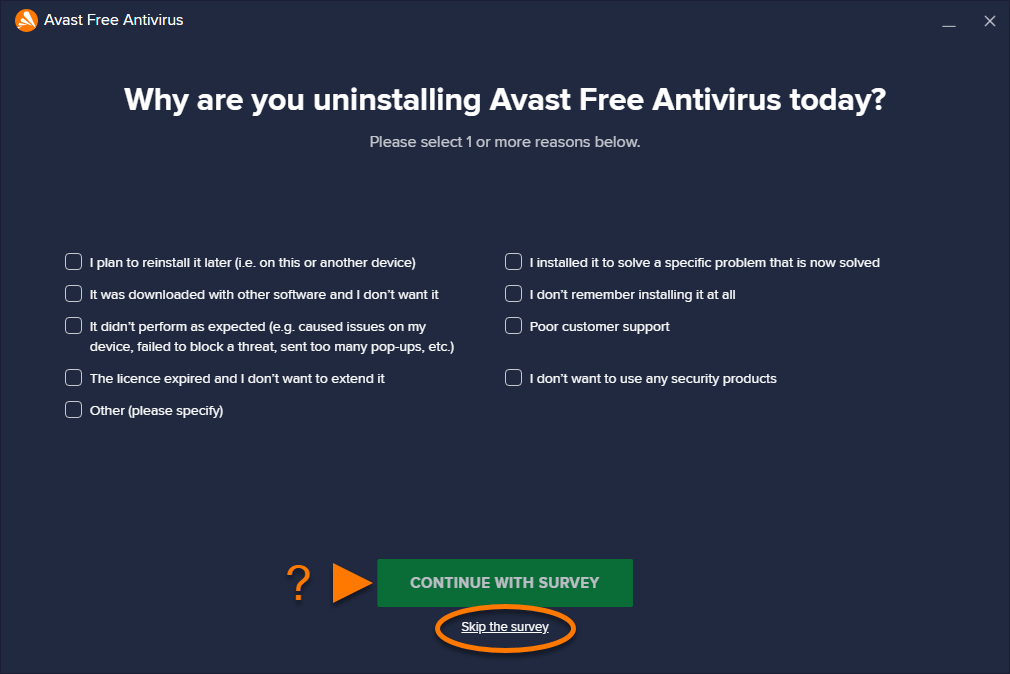
- Optionally, complete the customer survey and click Continue with survey, or select Skip the survey.
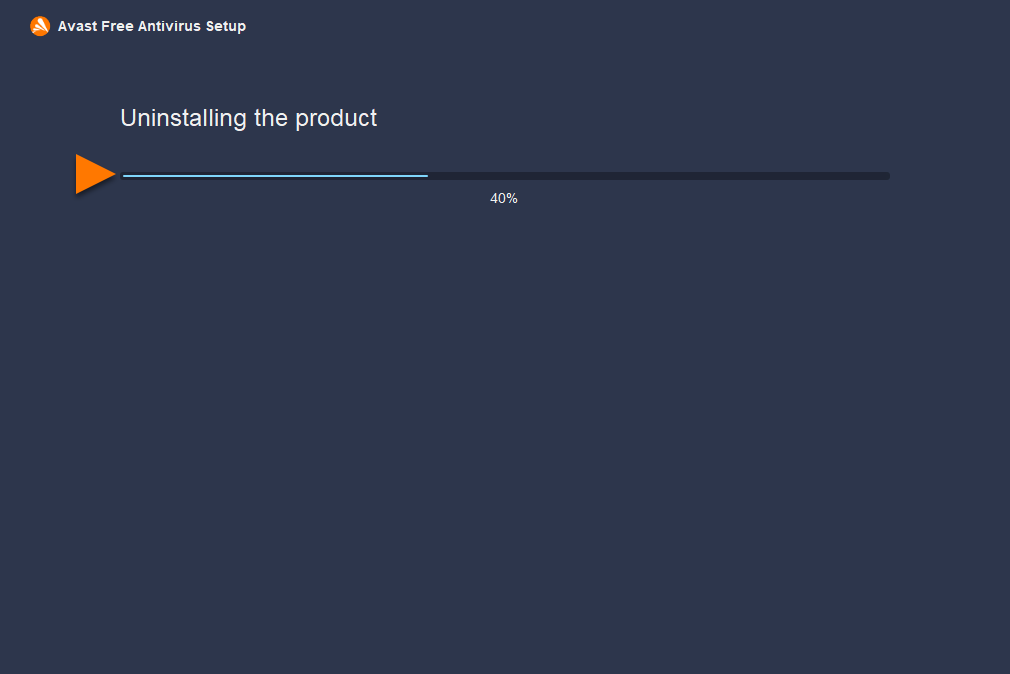
- Wait while the uninstaller removes Avast Free Antivirus from your PC.
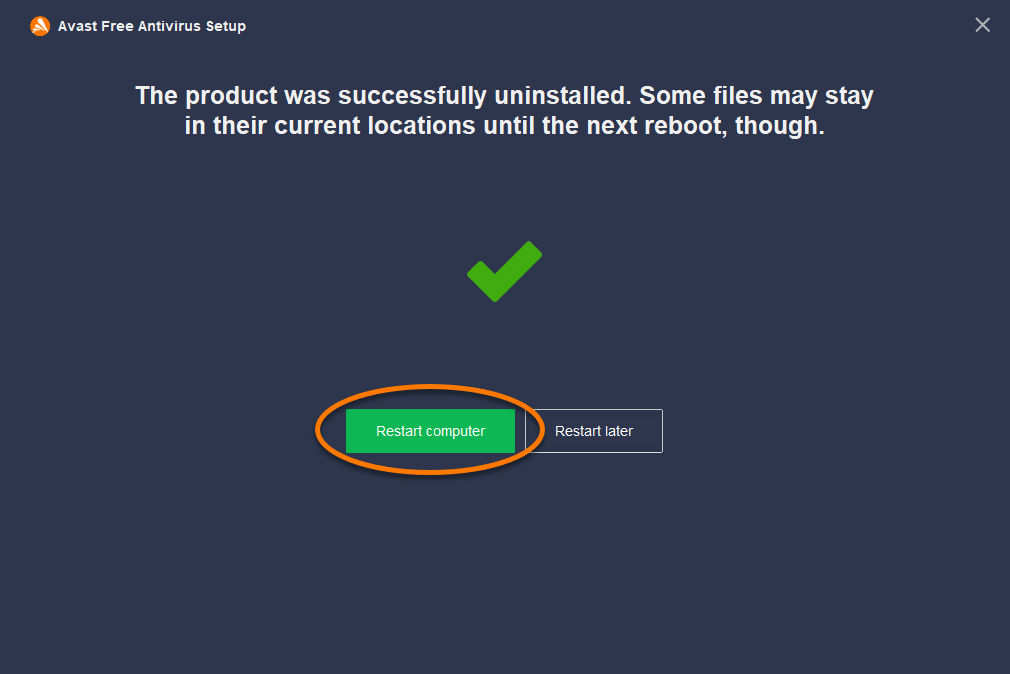
- When the confirmation message appears, click Restart computerto immediately reboot your PC and complete uninstallation.
Uninstall via Uninstall Tool
If you experience issues trying to uninstall Avast Free Antivirus via the Start menu, we recommend using the Avast Uninstall Tool to completely delete all Avast Free Antivirus files from your PC while Windows runs in Safe Mode.For instructions, refer to the following article:
- Using the Avast Uninstall Tool
Hidden content
You need to react to this post in order to see this content.
